
Open house → property inquiries
Real estate · Plan + Facebook post + visual
LEARN · CREATE. CONNECT. GROW.
Useful information before identification. Explore free guides, clear examples and practical steps at your own pace. Choose one task and try it—no purchase required.
25 individual guides. Each explains what the task means, shows a real-life example and picture, walks through the steps and helps you check the result.
A form customers can use to ask about your service.
A button that opens the correct business page.
A page with clear business details and a working inquiry button.
The correct Google Business Profile for your business.
A post and sign that open the same current information.
A matching business name and look across your hub and sign.
A review sign that opens your correct review page.
Clearer customer instructions based on real feedback.
A Google listing with current hours and working links.
A working customer route the owner can use and maintain.
A clear next step when an app screen does not match.
Try the free steps first. If you want guidance or implementation, tell us what you need. We will explain the scope and cost before you decide.
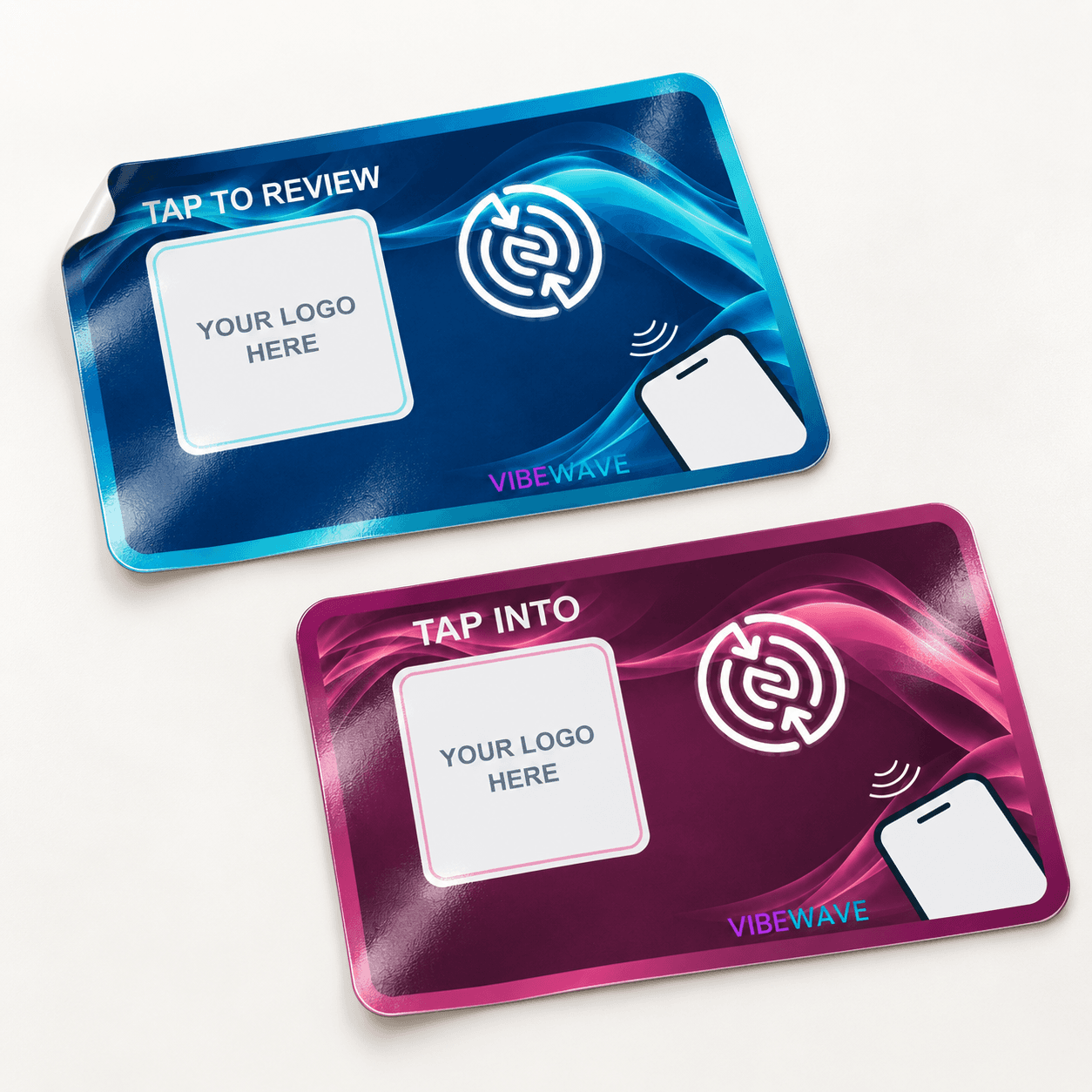
Direct Tap opens one link. A Multi-Link Hub opens a page of your business buttons.
VIBEWAVE Connect PRO · $350 →Presentation mockups. Your artwork and final product are confirmed in your proof.Practical sticker, home-printing, business-startup and marketing tips. VIBEWAVE hubs and Vibe Pages are paid services.
Need help setting up your Google Business Profile? →
Plan a promotion, event or customer connection. Choose your goal, create your message, and give people one clear next step—online or with a tap or scan.
A campaign is a focused plan to encourage one action over a set period. You can use it on social media, your website, printed signs, NFC products or QR codes—without buying ads.
Free ideas for every industry. Browse without changing your plan, then choose a starting point. Everything is editable.
Use your existing website, form or booking link. A paid VIBEWAVE page or Jotform account is not required.
One goal. One message. One destination. Use the same link in your post and on your tap or QR product. This planner prepares your content; you choose where and when to share it.
A filled-in example for an agent helping homeowners plan before they are ready to list.
Try opening a complete example: the plan, post and picture together. This sample is separate from your private account.
Real estate · Plan + Facebook post + visual
Examples are editable starting points. Nothing is posted or sent. Save locally or sign in to keep your plan, post and visual together across devices.
Use approved property details and your required business or brokerage identification.
Your plan, editable Facebook post and visual in one campaign. Sign in with the same email to return from another device.
JPG, PNG or WebP · up to 5 MB. Use artwork you have permission to share. Uploads stay private to your account.
One ZIP: picture + Facebook caption + campaign plan. Unzip before sharing. Attach or open a campaign visual first.
Free to plan. Signing in saves campaigns online; it does not post to Facebook or publish your website. Only the plan and wording are included in the browser-only save below; save the visual to your account or download it separately.
Learn to print and use your finished sticker designs, prepare your business information and share your work. Hub and website design are services you purchase from VIBEWAVE.
Need a branded hub or a Vibe Page? Choose a paid hub package or request a quote for a custom experience.
Open a guide when you need it. Try the examples, use the tools you already have, and ask for help whenever you want.
Choose the public page you want customers to open. In desktop Chrome, open that page and use the browser’s sharing tools to create a QR code. Download it, leave a clear border around it, and scan a test print with a phone before using it on your sign.
A printed QR code keeps the address it was created with. Changing a destination later needs a managed redirect or a new printed code.
Chrome’s QR sharing guideUse a compatible blank NFC tag and a phone that supports writing tags. In NFC Tools, choose Write, add a URL record containing your public website address, then write it to the tag. Test the tag on another phone and in its final mounting position.
Only program tags you own or have permission to change. Test your final destination before using any permanent locking feature. A tag opens a link; it does not itself take a payment or submit a review.
NFC Tools’ illustrated writing guideCheck whether your business is eligible, then search for an existing profile before creating another. Add or claim the correct business, enter accurate name, category, address or service area, hours and contact information, and follow Google’s verification process.
The profile itself is free. Google decides eligibility and verification. Keep ownership in your business account and invite helpers with the appropriate role instead of sharing a password.
Google’s getting-started guideStart with what you sell, who it helps, the price or how to request a quote, and one clear contact action. Add your business details and photos you have permission to use. A single useful page can be enough to start.
Choose a builder that fits your budget, connect the domain you control, and test every button, form and phone layout. Check the builder’s current hosting, domain and cancellation costs before subscribing. Use Jonny’s hub and website as examples of how a simple connection can grow into a richer experience.
Explore Jonny’s website exampleWrite down what you need: appointment types, reminders, cancellations, deposits, online payments or in-person sales. Compare provider availability, total fees, supported business types, accessibility and exports. An existing tool may already meet your needs.
Set up each service in your own business account, test its booking or payment link, then connect that public link to your website or hub. A link is different from an integration that automatically shares information.
Read about recommendations and referralsKeep your website, contact details, booking links and payment links together. Decide what needs to connect. A public link may be enough; an automatic connection needs a supported integration and your authorization.
Give helpers only the access they need. Test a safe sample record, check what data is shared, and decide who handles updates when a provider changes. Keep account ownership and recovery information with your business.
Ask about integration helpStart with a clear offer, your business name, contact details, hours and photos you have permission to use. Choose the next step you want a visitor to take. Publish one useful page, then test every link on a phone.
Try Jonny’s examples: the tap introduction leads to his hub, and the hub opens a richer website experience with photos, stories and inquiry paths.
Want help with branding, an artist, consultations, a website or setup? Choose any or all in a custom project. Website Custom component and interactive projects start at $2,000; other services are priced to scope.
Explore custom services and budgetsUse what already works for your business. Free guidance here does not mean every recommended service is free. Providers set their own prices, eligibility and terms.
For businesses that need email at their own domain, shared files and team collaboration. Compare the available plans with the tools you already have.
Referral disclosure: VIBEWAVE may receive a referral reward if you sign up through this link and meet Google’s program requirements.
Explore Google WorkspaceThis is an optional paid third-party service. A referral does not include VIBEWAVE setup or support unless agreed separately.
Payment, booking and payroll tools depend on your business needs. We are reviewing Square, Acuity, Gusto, Calendly and Stripe. A provider’s public program does not mean VIBEWAVE is an approved partner.
One tap → One destination.
$50 · tax additionalNo Connect hub or Connect subscription.
Standard US shipping included. Size confirmed before ordering. Unpriced formats and custom work require a quote.One tap → Your hub → Multiple links.
$199 · first year includedThen $120/year per hub. Tax and shipping additional.
Up to six main buttons; one may open up to five related links. Standard US shipping is included; applicable tax is additional. Approve your proof before production.Real experiences help people decide whether a business suits their needs.
Google says reviews and ratings can help local ranking. Relevance, distance and other signals also matter.
A direct review link helps customers find the correct destination without searching for it.
Choose an eligible platform that your customers use. Local business reviews and product reviews meet different needs.
Customers choose whether to review and what to say. No guaranteed reviews, ratings, rankings or sales.
Do not screen customers by satisfaction or offer rewards for reviews. Google prohibits review incentives; Yelp asks businesses not to solicit reviews.
Google review policies ↗Download the illustrated tap & scan guide (PDF)
QR scanning works without NFC.
Open the link → Reach the destination. Internet access is needed to load the website.
Phone support and reader location vary. Wake and unlock your phone, hold near the marked area, and follow the notification. A destination may require sign-in. No special VIBEWAVE customer app is required on supported phones.
NFC is short-range communication. Our tag supplies a web address; it does not itself submit a review or process a payment. Check your phone’s NFC support and settings, case and mounting surface.
NFC Forum explanation ↗Test both methods before applying an adhesive product. Use a clean, dry surface and keep the QR code unobstructed. Avoid metal unless your product is designed for it. If tapping fails, move the phone slightly, remove a metal or card-wallet case, and check NFC settings. On iPhone, close Camera and Wallet before retrying. For QR scanning, reduce glare and adjust your distance.
Contact hello@vibewave.studio with your order reference, phone model and which method failed. Before changing your link name, ask us how to preserve existing taps and printed QR codes.
Meal finished → Tap → Review
Counter, table or host stand.Appointment finished → Tap → Review / Rebook
Reception or stylist station.Guest-service moment → Tap → Your hub
Front desk or guest-service area.Service completed → Tap → Review
Checkout or service desk.Checkout → Tap → Review
Register or counter.Job completed → Tap → Review / Refer
Portable display or shared follow-up link.Direct Tap opens one destination. Multiple choices require Connect and suitable destination services. Follow each review platform’s rules.
Use a suitable portable tap product, or share your link by email or text. Test physical mounting and access; confirm outdoor or vehicle suitability before ordering.
VIBEWAVE is a Washington small business designing and assembling custom tap products locally.
Same design for everyone.
Your logo → Your colors → Your review destination → Your business.
Commercially sourced materials and NFC components. Designed, printed, assembled, programmed, tested or finished by VIBEWAVE as applicable to your order. Approve your proof before production.
Logo, brand colors, theme, wording, supported destination, icons and layout can be tailored within your order’s scope. Use artwork you have permission to provide.
43 answers
VIBEWAVE is a Washington small business creating physical-to-digital connections for other businesses. Custom tap products, QR when included, shared links and managed hubs help customers reach the right online destination.
One tap opens one selected public destination, such as reviews, booking, a menu, a website or a tip link. The standard offer is $50; applicable tax is additional and standard US shipping is included and the physical size is confirmed before order acceptance. It does not include a Connect hub or require a Connect subscription.
One tap opens your branded hub with several customer links, such as reviews, menu, booking, ordering, tipping, website and social pages. The linked services remain separate third-party services.
Choose Direct Tap when your goal is one destination. Choose Connect when customers need several links in one branded place. You can start simply and discuss Connect later; upgrades and any hardware changes are quoted.
A compatible phone reads the tag and offers its programmed web link. The customer opens the destination and chooses whether to leave feedback. Google is one supported review destination; select the destination that fits your business.
No. We do not guarantee review counts, positive or five-star reviews, ratings, rankings or increased sales. We provide an easier connection; your customers decide whether to respond and what to say.
They help prospective customers understand previous customer experiences. Google says reviews and positive ratings can help local ranking, alongside relevance, distance and other signals. A tap product does not control those results.
A direct link can remove the need to search for the business, identify the correct listing and find its review area. It does not automatically create a review.
After a genuine interaction, where the chosen platform permits requests. For example: after a meal, checkout, appointment or completed job. Welcome honest feedback from customers without screening for a positive experience. Yelp specifically asks businesses not to solicit reviews.
Yes. Customers control their own feedback. VIBEWAVE does not filter unhappy customers away from the review destination.
Consider where your customers already look, the type of business you run, whether your business is eligible and the platform’s rules. A local listing and a product-review service serve different purposes. One platform does not fit every business. Direct Tap still opens just one selected destination.
NFC lets a compatible phone read a nearby tag. Bring the phone near the marked tap area, then follow the phone’s prompt to open the link. It is a connection tool, not a payment transaction.
A separate VIBEWAVE customer app is not required for our web-link experience. Compatible phones can read the tag with their built-in features; older or unsupported models may need another access method. The destination service may require sign-in or its own app.
Many compatible iPhone and Android models can read NFC tags. Support depends on the phone, settings and software. Apple documents background tag reading on iPhone XS and later. We do not promise support for every device.
Wake and unlock the phone, bring its NFC reader area close to the marked target, and hold briefly. The reader location varies by model, often near the upper back. Open the notification if one appears.
Check that the phone supports NFC and enable it if the phone provides that setting. Try a different position, remove a thick or metal case, and check the internet connection. Test the mounting surface too: ordinary tags are not guaranteed to work on metal. Use QR or a shared link where supplied.
Reading the tag and loading the website are separate steps. The tag contains a link; the phone needs an internet connection to load the online destination.
NFC uses a close tap. QR uses a camera scan. Both can provide a convenient route to the same destination when included in your product. Choose what fits your customers and setting.
Choose NFC tap only or NFC + QR code on any product, with no price change. Both open the same destination. QR size and placement are confirmed in your artwork proof.
Choose a place where customers naturally pause: a restaurant counter, salon reception, hotel front desk, automotive service desk or retail register. Keep it reachable and test the surface, phone access and final placement.
Mobile teams, contractors, movers, technicians, realtors and event businesses can use appropriate portable displays and shared links. A link can be sent by email or text; a physical NFC tag must be present for tapping. Confirm materials before using a product on a vehicle or outdoors.
Yes. A counter, staff card or service area can provide different customer access points. Choose only the locations you need. Hardware and setup requirements are confirmed for your order.
Yes. Depending on the product and order, we can incorporate your logo, colors, background, wording, supported destination, icons and layout. You approve the digital proof before physical production. Substantial custom work is quoted separately.
We use commercially sourced materials and technology components. Our custom products are designed and assembled or finished by VIBEWAVE, rather than simply reselling an identical generic finished review sign. Individual components are not all handmade.
VIBEWAVE is a Washington small business. Custom products are designed and assembled locally. Materials and NFC technology components may come from third-party manufacturers; we do not claim that all components are made locally or in the USA.
Depending on your product and artwork, we can design around your logo, colors and brand style. You must have permission to use the logos and artwork you provide. Your digital proof lets you review the design before production.
Your business name, logo if you have one, preferred colors and selected review URL. For Connect, also provide the labels and URLs for the links you want. A selected service icon is not your actual destination URL.
Supported links can lead to reviews, a menu, booking, ordering, tipping, your website, social pages, gift cards or directions. Ask us about call/text actions and any special connection before ordering. The preview currently accepts website URLs.
Your physical connection can continue pointing to the managed hub while VIBEWAVE updates a destination inside it. Submit an owner update request under your plan. Hardware often does not need replacement for a link change, but technical circumstances can differ.
Use the private owner update pathway provided for your service, or contact VIBEWAVE if you need help locating it. We review the request and make approved changes under your plan. Customers do not receive direct access to our internal CMS.
Public visitors can use the links but cannot edit the hub. Owner changes use the separate management process. The public designer is a preview and does not activate or edit a live customer hub.
Yes. Connect your current tip link to your hub. Need help setting it up? Ask VIBEWAVE; any setup fee is confirmed before we begin. Your provider handles the payment through your own account. We only need the link, not your bank details or secret API keys.
Tell us what you need: tipping, booking, ordering, payments, loyalty or another tool. We may help identify independent providers. You decide whether a provider suits your business; availability and any setup package must be confirmed.
VIBEWAVE may connect you with independent providers. Those companies supply and support their services. A link on a hub does not make VIBEWAVE the provider of that service.
VIBEWAVE may receive referral rewards from links clearly marked beside a recommendation. Google Workspace is one referral option. Evaluate each provider’s terms, costs and suitability; a listed tool does not imply a provider endorsement or a working integration.
The standard one-destination Direct Tap review product is $50. Applicable tax is additional and standard US shipping is included. It does not require a VIBEWAVE Connect subscription. Physical size and included customization are confirmed before order acceptance; unpriced formats and custom work require a quote.
$199, Applicable tax and shipping calculated at checkout. One hub, up to 6 connections and 2 physical products. Your first year is 199, then 120/year. Applicable tax is additional. Standard US shipping is included for eligible orders. Shipping eligibility and product choices require confirmation before ordering. Standard Connect uses one simple setup flow. Guided help does not cost extra. VIBEWAVE Custom starts at $2000+; Custom & Business Packages are quoted.
The $120 annual renewal keeps your VIBEWAVE Connect profile active and managed for another year. The physical tap product is the access point. Additional standard update requests are $15 each; substantial design/content work is quoted separately. Owner edits require approval; full public self-service editing is not live. Existing customer agreements remain unchanged.
Review the current service and cancellation policies before purchasing, and contact VIBEWAVE for clarification. Do not assume a refund or continued hub availability after cancellation; your applicable service terms govern.
No. We sell products and services that connect customers to destinations. We do not write customer reviews, sell fake reviews, guarantee positive feedback or control ratings.
No. Seek genuine feedback and follow the platform’s policies. Do not gate reviews or offer rewards for positive feedback. Google prohibits incentives for any review, not only positive ones.
VIBEWAVE does not claim ownership of your Google Business Profile, social profiles or other third-party accounts. Those remain subject to your relationship with their providers.
Preview images stay in your browser until an explicit, supported submission step. A preview, saved draft or selected logo does not create a live customer record or activate routing.
Your business identity, within your chosen product and design scope.
Direct Tap opens one selected destination.
A managed hub can bring several customer destinations together.
Choose the moment, location and access method that make sense.
Request plan-supported changes as your business links change.
We provide the connection. Your customers provide the feedback.
Your logo, your imagery, your personality. VIBEWAVE keeps the experience clear and connected behind the scenes.
Request verified, operator-managed updates at launch. Your permanent Tap URL stays the same.
Secure customer self-service is in development and is not live yet. No Framer account is needed.